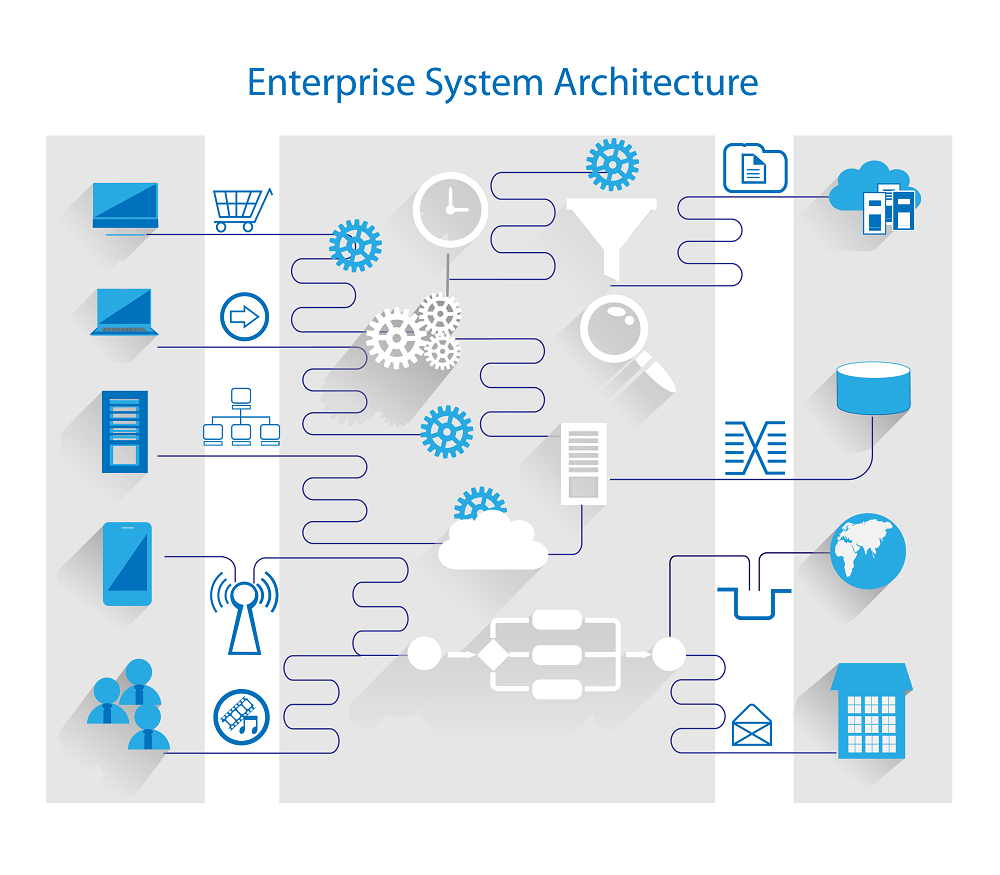
Ever wondered what your computer is secretly recording? System logs hold the answers—silent witnesses to every action, error, and event on your machine. Dive in to uncover their hidden power.
What Are System Logs and Why They Matter

At the heart of every operating system lies a quiet but vigilant observer: system logs. These are chronological records generated by the operating system, applications, and hardware components that document events, errors, warnings, and operational details. Think of them as the black box of your computer—recording everything from startup sequences to security breaches.



The Anatomy of a System Log Entry
Each log entry isn’t just random text—it follows a structured format that makes it both machine-readable and human-analyzable. A typical entry includes several key components:
- Timestamp: When the event occurred, usually in UTC or local time with timezone info.
- Log Level: Severity indicator like DEBUG, INFO, WARNING, ERROR, or CRITICAL.
- Source: The process, service, or module that generated the log (e.g., kernel, Apache, SSH daemon).
- Message: A human-readable description of the event.
- PID/Process ID: Unique identifier for the process involved.
“Without logs, troubleshooting is guesswork.” — Anonymous Sysadmin
For example, a Linux system might generate this log line:Oct 10 14:22:03 server1 sshd[1234]: Failed password for root from 192.168.1.100 port 22
This single line tells us when, where, and how someone tried (and failed) to log in via SSH.
Different Types of System Logs
Not all logs are created equal. Operating systems categorize logs based on their source and purpose. Here are the most common types:
- Kernel Logs: Generated by the OS kernel, tracking hardware interactions, driver issues, and boot processes. On Linux, these are often found in
/var/log/kern.log. - System Logs: General operational messages from system services. In Ubuntu, this is typically
/var/log/syslog. - Authentication Logs: Record login attempts, sudo usage, and user access. On many systems, this is
/var/log/auth.log. - Application Logs: Specific to software like web servers (Apache/Nginx), databases (MySQL), or custom apps. These reside in
/var/log/subdirectories. - Security Logs: On Windows, the Security event log tracks account logins, policy changes, and audit events.
Understanding these distinctions helps you pinpoint where to look when something goes wrong.
How System Logs Work Behind the Scenes
The magic of system logs happens through a combination of logging daemons, standardized protocols, and file management strategies. It’s not just about writing text to a file—it’s about doing so efficiently, securely, and scalably.
The Role of Syslog in Unix-like Systems
Syslog is the backbone of logging in Unix, Linux, and macOS environments. Defined by RFC 5424, it provides a standard format and protocol for message logging. The syslog daemon (like rsyslog or syslog-ng) listens for log messages from various sources and routes them to appropriate files based on rules.
For instance, rsyslog can be configured to send all critical errors to a remote server while keeping debug messages local. This flexibility makes it indispensable in enterprise environments.
Windows Event Logging Architecture
Windows takes a different approach with its Event Log service. Instead of plain text files, it uses binary-format log files (.evtx) stored in C:WindowsSystem32winevtLogs. Events are categorized into channels:
- Application: Logs from installed programs.
- Security: Tracks authentication and authorization events.
- Setup: Records system setup and configuration changes.
- System: Kernel and driver-related events.
- Forwarded Events: Aggregated logs from other machines.
You can view these using the Event Viewer (eventvwr.msc), which allows filtering, exporting, and real-time monitoring.
Log Rotation and Management
Logs grow fast. A busy server can generate gigabytes of data per day. Without proper management, they can fill up disks and make analysis impossible. That’s where log rotation comes in.
Tools like logrotate (on Linux) automatically compress, archive, and delete old logs. For example, a typical logrotate configuration might:
- Rotate
/var/log/syslogdaily. - Keep 7 rotated logs (one week of history).
- Compress old files with gzip.
- Send a signal to
rsyslogto reopen the log file after rotation.
This ensures logs remain manageable without losing historical data.
Why System Logs Are Critical for Security
In today’s threat landscape, system logs are not just helpful—they’re essential for detecting and responding to cyberattacks. Every intrusion leaves traces, and logs are often the first place to spot them.
Detecting Unauthorized Access Attempts
One of the most common signs of an attack is repeated failed login attempts. By analyzing authentication logs, you can identify brute-force attacks, dictionary scans, or credential stuffing.
For example, seeing hundreds of lines like this in /var/log/auth.log:Failed password for invalid user admin from 203.0.113.50
should raise immediate red flags. Tools like fail2ban can automatically block IPs after repeated failures.
Identifying Malware and Rootkit Activity
Malware often modifies system files, opens backdoor ports, or creates hidden processes. These actions usually generate log entries. For instance:
- A rootkit modifying the kernel might trigger a warning in
kern.log. - An unexpected service starting at boot may appear in systemd logs.
- Outbound connections to suspicious IPs could show up in firewall or proxy logs.
While sophisticated malware tries to erase its tracks, gaps in logs—such as missing entries during a suspected breach—are themselves suspicious.
Compliance and Forensic Investigations
Regulations like GDPR, HIPAA, and PCI-DSS require organizations to maintain audit trails. System logs serve as legal evidence during investigations. They help answer critical questions:
- Who accessed sensitive data?
- When did the breach occur?
- What systems were affected?
According to the NIST Cybersecurity Framework, logging and monitoring are core components of the “Detect” function.
Troubleshooting with System Logs: A Step-by-Step Guide
When your system misbehaves, logs are your best friend. Whether it’s a crashing app or a slow boot, the clues are almost always in the logs.
Finding the Right Log File
The first step is knowing where to look. Here’s a quick reference:
- Linux General Logs:
/var/log/syslogor/var/log/messages - Authentication Issues:
/var/log/auth.log - Boot Problems:
/var/log/boot.logorjournalctl -b - Apache Web Server:
/var/log/apache2/error.log - MySQL Database:
/var/log/mysql/error.log - Windows System Errors: Event Viewer → Windows Logs → System
- Application Crashes: Check vendor-specific log directories or Event Viewer → Application
Use ls -lt /var/log to see which logs were recently updated—this can help narrow down the culprit.
Using Command-Line Tools to Analyze Logs
Powerful Unix tools make log analysis efficient:
tail -f /var/log/syslog: Monitor logs in real-time.grep "ERROR" /var/log/syslog: Filter lines containing “ERROR”.journalctl -u nginx.service: View logs for a specific systemd service.awk '{print $1, $2, $6}' /var/log/auth.log: Extract specific fields (date, time, message).sed -n '/Oct 10 14:00/,/Oct 10 15:00/p' /var/log/syslog: Extract logs from a time range.
Combining these tools lets you slice and dice logs with precision.
Common Error Patterns and What They Mean
Some log messages are more telling than others. Here are frequent patterns and their meanings:
- “Out of memory: Kill process”: The OOM (Out-of-Memory) killer terminated a process. Indicates memory pressure—check running services.
- “Device-mapper: reload ioctl failed”: Storage or LVM issue. Could signal disk failure.
- “Connection refused”: Service not running or blocked by firewall.
- “Permission denied”: File permission or SELinux/AppArmor policy issue.
- “Segmentation fault”: Application crashed due to invalid memory access.
Recognizing these patterns speeds up diagnosis significantly.
Centralized Logging: Scaling System Logs Across Networks
On a single machine, logs are manageable. But in large environments with hundreds of servers, checking each one individually is impractical. Centralized logging solves this by aggregating logs from multiple sources into a single platform.
Benefits of Centralized System Logs
Collecting logs in one place offers major advantages:
- Unified Visibility: See all events across your infrastructure from a single dashboard.
- Faster Incident Response: Correlate events across systems to identify root causes.
- Long-Term Retention: Store logs securely for compliance and historical analysis.
- Automated Alerts: Trigger notifications when specific patterns occur (e.g., 10 failed logins in 1 minute).
- Reduced Risk of Tampering: Attackers can’t delete local logs if copies are sent to a secure central server.
As systems grow, centralized logging becomes not just useful—but essential.
Popular Centralized Logging Solutions
Several tools dominate the centralized logging space:
- ELK Stack (Elasticsearch, Logstash, Kibana): Open-source powerhouse for log indexing and visualization. Learn more at elastic.co.
- Graylog: All-in-one platform with strong alerting and search capabilities.
- Fluentd: Cloud-native data collector that supports structured logging.
- Splunk: Enterprise-grade tool with advanced analytics and machine learning.
- rsyslog with TLS: Lightweight option for forwarding syslog securely over networks.
Each has trade-offs in complexity, cost, and scalability.
Setting Up a Basic Centralized Logging Server
Here’s how to set up a simple rsyslog server on Ubuntu:
- Install rsyslog:
sudo apt install rsyslog - Enable UDP reception by editing
/etc/rsyslog.confand uncommenting:$ModLoad imudp$UDPServerRun 514 - Restart rsyslog:
sudo systemctl restart rsyslog - On client machines, add this line to
/etc/rsyslog.conf:*.* @central-logging-server-ip:514 - Restart client rsyslog to start forwarding.
Now all clients send logs to the central server, where they can be stored and analyzed.
Best Practices for Managing System Logs
Good logging isn’t automatic. It requires planning, configuration, and ongoing maintenance to be effective.
Secure Your Logs Against Tampering
Logs are only trustworthy if they’re protected. Consider these security measures:
- Write-Once Media: Use WORM (Write Once, Read Many) storage for compliance logs.
- Hashing and Signing: Digitally sign log entries to detect alterations.
- Remote Logging: Send logs to a separate, hardened server that attackers can’t easily access.
- Access Controls: Restrict who can read or modify logs using file permissions or role-based access.
- Encryption in Transit: Use TLS when forwarding logs over networks.
Remember: if an attacker can delete or alter logs, they can cover their tracks.
Optimize Log Levels and Verbosity
Too much logging can be as bad as too little. Excessive DEBUG messages can drown out critical errors and waste storage.
Best practices:
- Use DEBUG only during development or troubleshooting.
- Set production systems to INFO or WARN by default.
- Enable ERROR and CRITICAL logging always.
- Allow dynamic log level changes without restarting services.
- Avoid logging sensitive data like passwords or credit card numbers.
Striking the right balance ensures logs are useful without being overwhelming.
Automate Monitoring and Alerting
Manually checking logs daily isn’t scalable. Automation is key.
Tools like:
- Prometheus + Alertmanager: Monitor log-based metrics.
- Elastic Watcher: Trigger alerts from Kibana dashboards.
- Zabbix or Nagios: Integrate log checks into monitoring workflows.
- Custom Scripts: Use cron jobs with
grepto scan for anomalies.
For example, a script could email admins if it finds “filesystem full” in any log within the last hour.
Future Trends in System Logs and Log Analytics
As technology evolves, so do logging practices. The future of system logs is smarter, faster, and more integrated than ever.
AI-Powered Log Analysis
Artificial intelligence is transforming log management. Machine learning models can:
- Detect anomalies in log patterns before humans notice.
- Predict failures by identifying subtle degradation trends.
- Automatically classify and tag log entries.
- Reduce false positives in alerting systems.
Tools like Splunk IT Service Intelligence and Google’s Chronicle use AI to make sense of massive log volumes.
Cloud-Native and Containerized Logging
With the rise of Kubernetes and microservices, traditional file-based logging doesn’t scale. Containers are ephemeral—logs vanish when pods die.
Solutions include:
- Sidecar Logging Agents: Deploy a logging container alongside each app.
- Fluent Bit in DaemonSets: Collect logs across all nodes in a cluster.
- Structured Logging with JSON: Replace plain text with machine-readable formats.
- Integration with Cloud Providers: Use AWS CloudWatch, Google Cloud Logging, or Azure Monitor.
These approaches ensure no log is lost in dynamic environments.
The Shift to Observability and Unified Telemetry
Logs are just one part of modern observability, which also includes metrics, traces, and events. The trend is toward unified platforms that correlate all data types.
OpenTelemetry, an open standard hosted by the CNCF, aims to provide a single framework for collecting logs, metrics, and traces. This holistic view makes debugging distributed systems far easier.
What are system logs used for?
System logs are used for monitoring system health, diagnosing errors, detecting security breaches, ensuring compliance, and performing forensic investigations. They provide a detailed record of events across operating systems, applications, and network devices.
Where are system logs stored on Linux?
On Linux, system logs are typically stored in the /var/log directory. Key files include /var/log/syslog, /var/log/auth.log, /var/log/kern.log, and service-specific logs under /var/log/ subdirectories. Systemd-based systems also use journalctl to access binary logs.
How can I view system logs on Windows?
You can view system logs on Windows using the Event Viewer. Press Win + R, type eventvwr.msc, and press Enter. Navigate to “Windows Logs” to see Application, Security, and System logs. You can filter, search, and export logs from there.
Can system logs be faked or deleted?
Yes, attackers with sufficient privileges can delete or alter system logs to cover their tracks. This is why secure logging practices—like remote log forwarding, write-once storage, and log integrity checks—are critical for maintaining trust in log data.
What is the best tool for analyzing system logs?
The best tool depends on your needs. For open-source solutions, the ELK Stack (Elasticsearch, Logstash, Kibana) is highly popular. Graylog offers a user-friendly interface. For enterprise environments, Splunk provides powerful analytics. For lightweight setups, journalctl and rsyslog are effective.
System logs are far more than technical footnotes—they are the pulse of your digital infrastructure. From troubleshooting everyday glitches to uncovering sophisticated cyberattacks, they provide the visibility needed to maintain reliability, security, and compliance. As systems grow in complexity, so too must our approach to logging. Embracing centralized platforms, automation, and emerging technologies like AI and OpenTelemetry will ensure that system logs remain a cornerstone of effective IT management. Whether you’re a system administrator, developer, or security analyst, mastering the art of logging isn’t optional—it’s essential.
Further Reading: